

VedronERP · Analysis & Reports
Diese Seite ist noch nicht auf Deutsch verfügbar. Sie sehen das englische Original.
Inventory Value
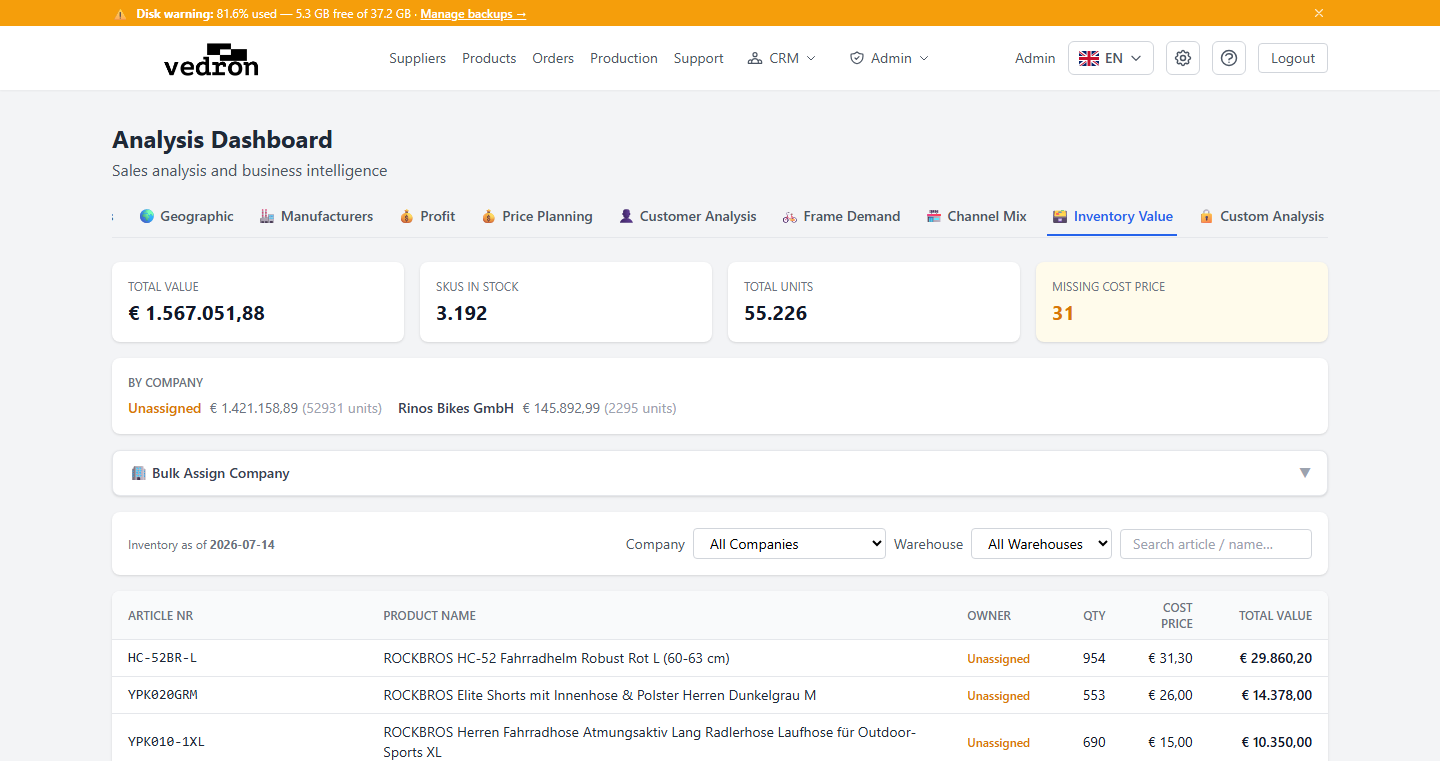
The Inventory Value tab shows the total value of your stock on hand, right now, based on quantity × cost price for every product.
Accessing Inventory Value
- Go to the Analysis page and click the "Inventory Value" tab.
- Optionally filter by company, warehouse, or search for a specific article.
What You See
- Summary cards for Total Value, SKUs in Stock, Total Units, and Missing Cost Price.
- A "By Company" breakdown when stock is split across more than one company.
- A product-level table with quantity, cost price, and total value per article. Rows with no cost price on record are highlighted, since those products are excluded from the value totals until a cost price is added.
Assigning Stock to a Company
If products show as "Unassigned," open the "Bulk Assign Company" panel to assign stock to the right company in bulk — filter by manufacturer, or restrict to unassigned items only, then choose the target company.
Tip: Keep an eye on the "Missing Cost Price" card — any product listed there is being left out of your total inventory value until you add a cost price.