

VedronERP · Marketplace Integrations
Configuring Marketplace Credentials
Before you can sync orders from any marketplace, you need to configure the API credentials for that platform.
Setting Up Credentials
- Go to the Credentials page (via Dashboard → Marketplace Integrations → Credentials, or Settings dropdown).
- Select the platform you want to configure.
- Enter the required API keys, tokens, or OAuth credentials.
- Test the connection to verify the credentials work.
- Save the configuration.
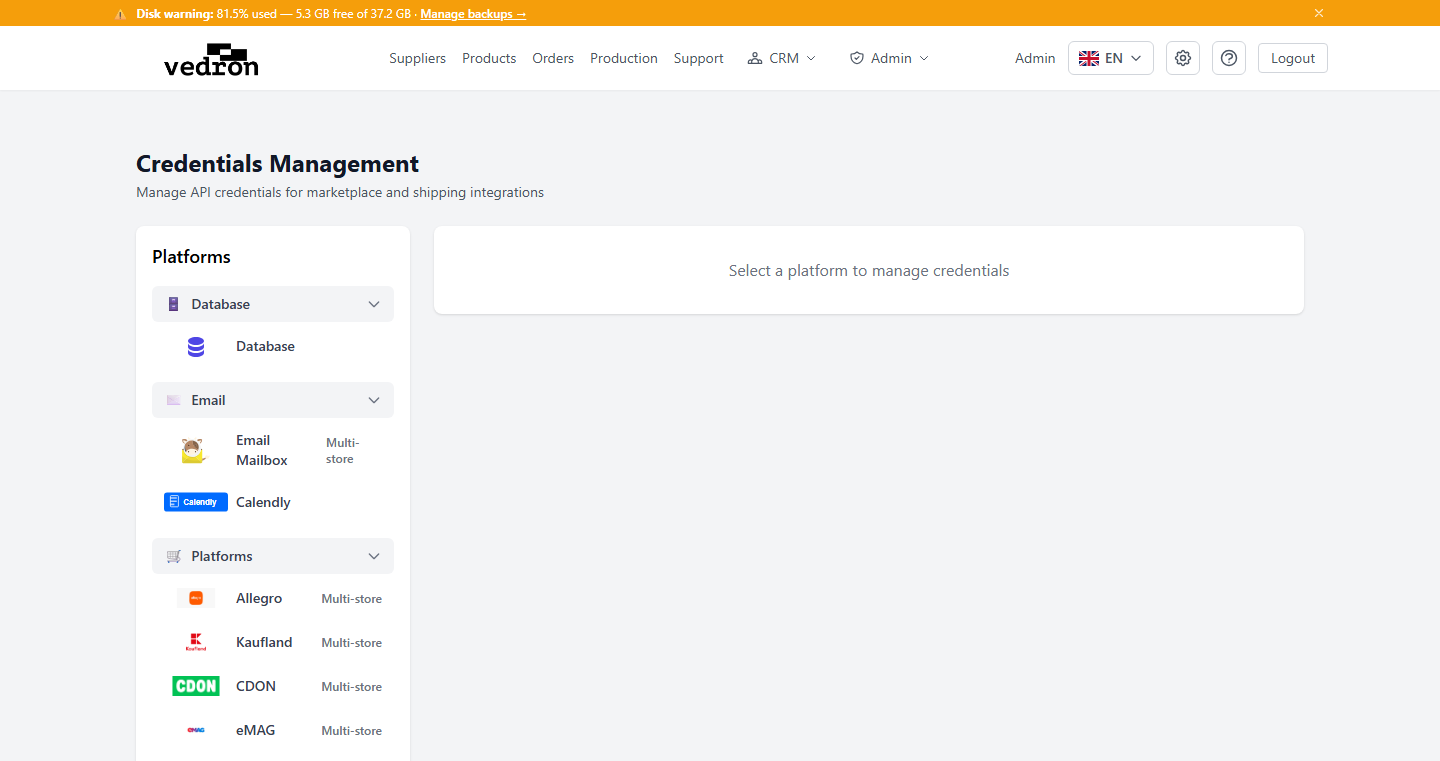
Required Credentials by Platform
- Shopify — Store URL, API key, access token
- eBay — OAuth tokens (automatically managed with token refresh)
- Allegro — Client ID, client secret, OAuth authorization
- Kaufland — API key, secret key, storefront ID
- CDON — API key
- eMAG — Username, password (API credentials)
- PHH — Username, Password, Seller ID
- Bol.com — Client ID, Client Secret (OAuth2)
- Mimovrste — Client ID
How to Obtain Credentials
Each platform has its own developer or seller portal where you generate API credentials. The exact field names in the ERP Credentials page are shown in brackets for each step.
Shopify
Required fields: Store URL, Access Token. Shopify supports multiple stores — each store needs its own credentials.
- Log in to your Shopify Admin (your-store.myshopify.com/admin).
- Go to Settings → Apps and sales channels.
- Click 'Develop apps' at the top right. If prompted, enable custom app development.
- Click 'Create an app', give it a name (e.g., 'ERP Integration').
- Go to the 'Configuration' tab and click 'Configure' under Admin API access.
- Enable these scopes: read_orders, write_orders, read_fulfillments, write_fulfillments.
- Click 'Save', then go to the 'API credentials' tab and click 'Install app'.
- Copy the 'Admin API access token' (shown only once — save it immediately).
- In the ERP Credentials page: enter [Store URL] as your-store.myshopify.com (no https://), and [Access Token] as the token you copied.
eBay
Required fields: Client ID, Client Secret, User Token. eBay uses OAuth — the User Token is obtained by completing an authorization flow inside the ERP.
- Go to developer.ebay.com and sign in with your eBay account (can be any account; production credentials are needed).
- Go to My Account → Application Keys.
- Under the 'Production' tab, create a new application key set (or use an existing one).
- Copy the 'App ID' — this is your [Client ID].
- Copy the 'Cert ID' — this is your [Client Secret].
- In the ERP Credentials page, enter the Client ID and Client Secret, then click 'Authorize'.
- You will be redirected to eBay's login page — sign in with your eBay seller account.
- After granting access, the [User Token] is stored automatically by the ERP.
- The ERP manages token refresh automatically. Re-authorize if you see authentication errors.
Allegro
Required fields: Client ID, Client Secret. Allegro uses OAuth — after entering the credentials you authorize via a redirect.
- Go to apps.developer.allegro.pl and log in with your Allegro seller account.
- Click 'Add new application' and choose 'Web application' as the type.
- Fill in the application name and description.
- Set the redirect URI to the one shown in the ERP Credentials page (or contact your administrator).
- After saving, copy the [Client ID] and [Client Secret] from the application details.
- In the ERP Credentials page, enter both values and click 'Authorize'.
- You will be redirected to Allegro's login — approve access with your seller account.
- The integration is valid for all Allegro markets your account operates on.
Kaufland
Required fields: Client Key, Secret Key. Kaufland supports multiple storefronts (DE, CZ) — each storefront uses the same credentials but is listed separately.
- Log in to the Kaufland Seller Portal at sellerportal.kaufland.de.
- Go to Settings → API settings (or “Schnittstellen” in German).
- Under 'API keys', click 'Generate new key'.
- Copy the [Client Key] (public key) and [Secret Key] (private key).
- Enter both values in the ERP Credentials page for the relevant Kaufland storefront (DE or CZ).
- Repeat for each Kaufland storefront if you sell on multiple markets.
CDON
Required fields: Merchant ID, API Token. CDON covers Sweden, Denmark, Finland, and Norway.
- Log in to the CDON Merchant Center at merchants.cdon.com.
- Go to Settings → Integration → API.
- Your [Merchant ID] is displayed in your account profile or the API settings page.
- Generate or retrieve your [API Token] from the same page.
- Enter both the Merchant ID and API Token in the ERP Credentials page.
- If you do not have API access, contact your CDON partner manager to enable it.
eMAG
Required fields: Username (Email), Password. eMAG operates in Romania (emag.ro), Hungary (emag.hu), and Bulgaria (emag.bg). The same credentials apply across all markets.
- Log in to your eMAG Marketplace seller account (marketplace.emag.ro, marketplace.emag.hu, or marketplace.emag.bg).
- Go to Account Settings → API access (or “API credentials”).
- Your [Username] is your seller account email address.
- Generate or retrieve your API [Password] — this may differ from your login password.
- Enter the Username and Password in the ERP Credentials page.
- If API access is not enabled on your account, contact eMAG seller support to activate it.
PHH Group (Pigu.lt / 220.lv / Kaup24.ee / HobbyHall.fi)
Required fields: Username, Password, Seller ID. PHH Group covers four Baltic/Nordic marketplaces: Pigu.lt (Lithuania), 220.lv (Latvia), Kaup24.ee (Estonia), and HobbyHall.fi (Finland). One set of credentials covers all four.
- Contact PHH Group seller support through your marketplace account (pigu.lt, 220.lv, kaup24.ee, or hobbyhall.fi).
- Request API access for your seller account.
- PHH will provide your [Username], [Password], and [Seller ID].
- The Seller ID is a numeric identifier assigned to your seller account in the PHH system.
- Enter all three values in the ERP Credentials page under 'PHH Group'.
Bol.com
Required fields: Client ID, Client Secret. Bol.com uses OAuth2 client credentials — tokens are managed automatically by the ERP.
- Log in to your bol.com seller account at partnerplatform.bol.com.
- Go to Settings → API management (“API-beheer” in Dutch).
- Click 'Add credential' to create a new API credential set.
- Give the credential a name (e.g., 'ERP Integration') and ensure the following permissions are enabled: 'Manage orders' and 'Manage shipments'.
- After saving, copy the [Client ID] and [Client Secret].
- The Client Secret is only shown once — save it immediately.
- Enter both values in the ERP Credentials page under 'Bol.com'.
Mimovrste
Required fields: Client ID. Mimovrste (mimovrste.com / enaa.com) is a Slovenian marketplace. The Client ID is used as a query parameter in all API calls.
- Log in to your seller account at mimovrste.com or enaa.com.
- Contact marketplace seller support and request API access.
- They will verify your seller account and provide your [Client ID].
- Enter the Client ID in the ERP Credentials page under 'Mimovrste'.
- If you receive a 401 Unauthorized error when syncing, your Client ID may be inactive — contact support to reactivate it.
Warning: Keep your API credentials secure. Do not share them with unauthorized users. Some platforms require periodic token renewal.