

VedronERP · Order Management
Creating an Order
Create new orders by selecting a customer, adding line items, and setting order details.
How to Create an Order
- Go to the Orders page.
- Click the "+ Create Order" button.
- Pick the Company this order is billed from. If the dropdown is empty, that company needs an active "order" number range configured first — go to Number Ranges.
- Search for the customer by name, company, e-mail or customer number and select them — this determines the VAT rate and delivery address used on the order.
- Search for a product and click it to add it as a line item, then set quantity — repeat for each item. There is no separate "Add Line" button; clicking a search result is what adds the line.
- Set the order date, currency and payment method. Tax Treatment controls the VAT rate: Standard VAT, Reverse Charge, Intra-EU Supply or Non-EU Export. Review it before saving.
- Adjust the quantity or price directly in the item row if needed.
- Review the order totals (net, VAT and total).
- Click "💾 Create Order" to save it.
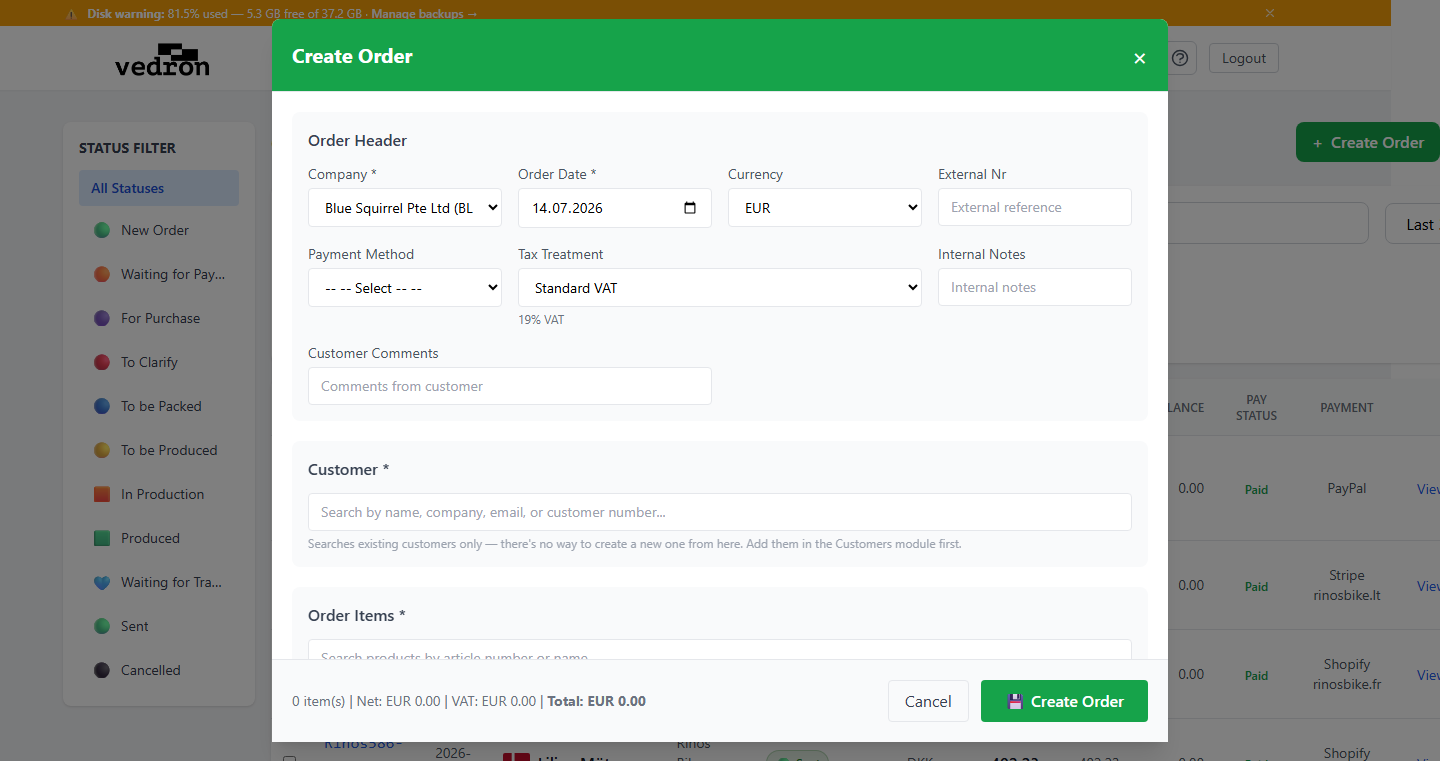
Customer Selection
When creating an order, you can select an existing customer from the database. The customer's billing and delivery addresses are automatically populated on the order. The delivery address follows the billing address unless you uncheck "Same as billing" and enter a separate one.
Warning: A customer cannot be created inline from this form, and the order cannot be saved without one — there is no "save now, add the customer later" option. Create the customer in the Customers module first if they don't exist yet.
Warning: A line item's product must already exist in the Products catalog — you can only add items by searching and clicking a real search result, not by typing an arbitrary article number here.