

VedronERP · Order Management
Viewing Orders
The Orders page provides a comprehensive view of all orders with powerful filtering and search capabilities.
Order List
The order list displays key information for each order including: order number, customer name, date, status, total amount, and payment status. Orders are sortable and filterable.
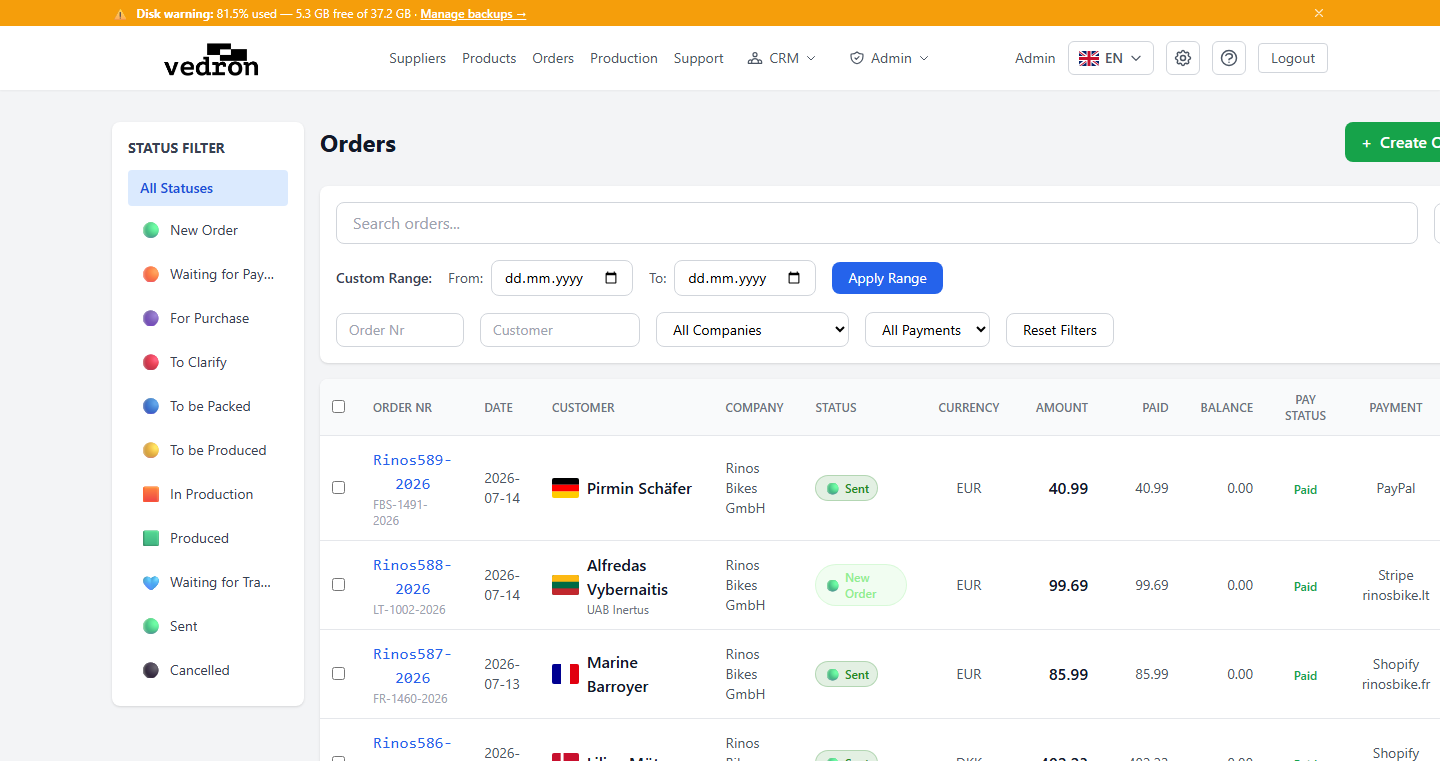
Filtering Orders
- Search — type an order number, customer or tracking number, then click Search or press Enter. While a search is active it looks through all dates, so an old order is still found. Tracking numbers can be pasted as printed on a label or carrier email: spaces, leading zeros and a trailing check letter are ignored, and the matching order shows its tracking number under the order number.
- Status filter — pick an order status in the status panel (e.g., New Order, In Progress, Sent, Completed).
- Date — a quick range (Today, This Month, This Year, Last 30 days, Last 90 days, Last 360 days, Show All) or "Custom Range" with From and To, then "Apply Range".
- Order Nr and Customer — enter a value and click "Apply".
- Company, Payments (Paid, Partial, Unpaid, Refund Due) and Carriers — drop-downs to narrow the list. "Reset Filters" clears everything.
Tip: Combine multiple filters to narrow down your results. For example, filter by "Sent" status and a specific date range to find recently shipped orders.
Tip: A number from a carrier email does not always match the tracking number saved on the order (a parcel refused by the customer and sent back can get a new number). If a tracking-number search finds nothing, a box under the empty list lets you type the order number from the email and link the number to that order; from then on the search finds it.
Tip: Search runs when you click the Search button or press Enter, not while you type.